
Introduction
Creating a presentation can take hours when you have to plan the slides, write the content, find suitable images, and format everything yourself. AI presentation makers can simplify much of this work by turning a simple idea or text prompt into a structured slide deck in minutes.
These tools can help students, teachers, freelancers, and office workers create presentations faster without requiring advanced design skills. Depending on the platform, an AI presentation maker can generate an outline, write slide content, suggest visuals, arrange layouts, and help prepare speaker notes.
In this guide, we’ll look at some of the best AI presentation makers for beginners, compare their features and free or paid options, and explain how to use them effectively. You’ll also learn what to look for when choosing a tool and how to improve an AI-generated presentation before presenting it.
What Is an AI Presentation Maker?
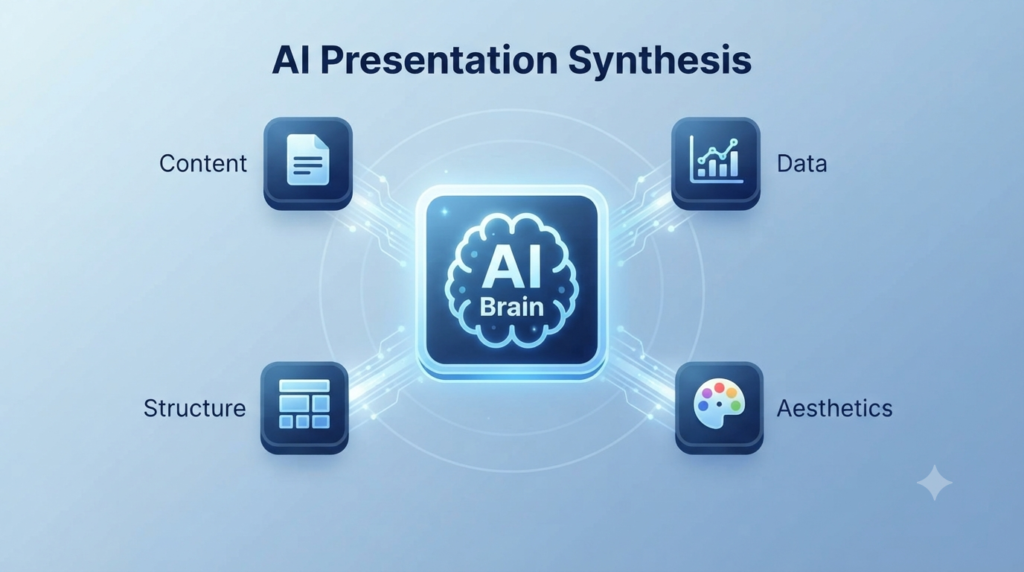
An AI presentation maker is a tool that uses artificial intelligence to help you create presentation slides from a text prompt or other input. Instead of designing every slide manually, you can describe what you want and let the tool generate a starting point for you.
Depending on the platform, an AI presentation maker can help you:
- Create a presentation outline
- Generate slide titles and content
- Suggest images and other visuals
- Arrange layouts and design elements
- Create charts or visual summaries
- Generate speaker notes or talking points
The AI does not always produce a perfect presentation on the first try. You should review the generated content, check important facts, and customize the slides to match your audience and purpose.
How to Choose the Right AI Presentation Tool
Not every AI presentation maker works in the same way. Before choosing one, consider what you need to create and how you plan to use the finished presentation.
Here are the most important things to check:
Ease of use: Choose a tool with a simple interface if you’re new to AI presentation software.
- Free plan or trial: A free plan or trial lets you test the tool before paying for a subscription.
- PowerPoint compatibility: If you normally use Microsoft PowerPoint, check whether the tool can export your presentation as an editable .PPTX file.
- Google Slides integration: This can be useful if you already work with Google Workspace or collaborate with others online.
- Templates and design: Look for customizable templates that match the type of presentation you want to create.
- Collaboration: If you’re working with a team, check whether the platform supports shared editing, comments, or other collaboration features.
- Export options: Make sure the tool supports the formats you need, such as PowerPoint or PDF.
Why Use AI Presentation Tools?
Creating slides manually can take a lot of time, especially when you need to organize information, choose visuals, and format every slide. AI presentation tools can handle many of these repetitive tasks and give you a useful starting point.

Here are some of the main benefits:
- Save time: AI can create an initial outline and slide structure much faster than starting from a blank presentation.
- Simplify design: You don’t need advanced design skills to create a visually organized slide deck.
- Improve slide structure: AI can help arrange headings, text, images, and other elements into a consistent layout.
- Get help with content: Many tools can generate summaries, bullet points, explanations, and speaker notes. If you’re also creating articles or blog content, AI writing tools can help with brainstorming, outlining, rewriting, and improving content flow.
- Work with others: Some platforms include collaboration features that allow teams to review and edit presentations together.
The goal is not to let AI do everything for you. Instead, use it to reduce repetitive work so you can spend more time improving your ideas and preparing your presentation.
The Best AI Presentation Makers of 2026
With so many options out there, choosing the right one can feel overwhelming. To help you decide, we’ve broken down the top best AI presentation makers currently on the market.
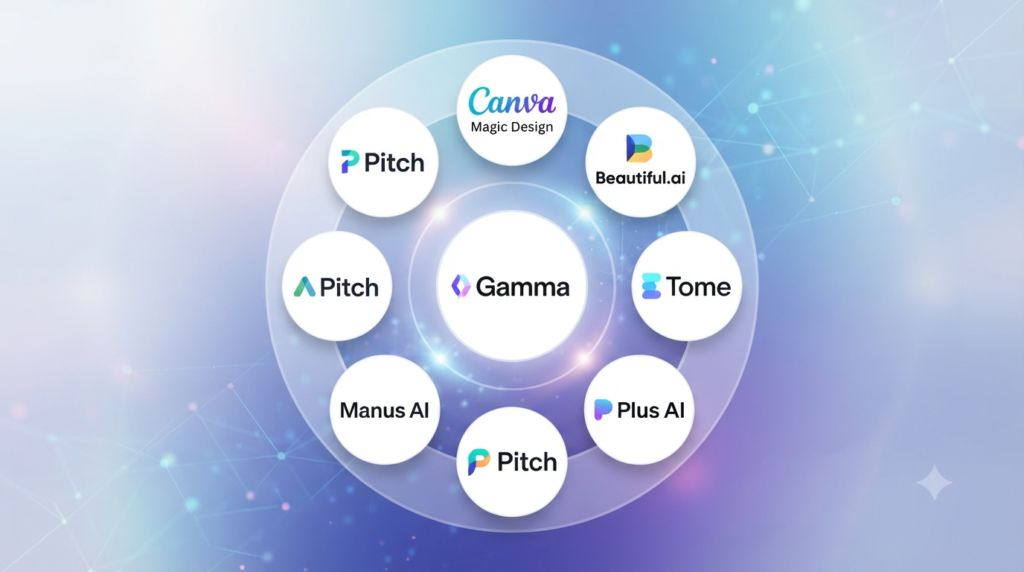
| Tool | Best For | Main Strength | Possible Limitation | Free Option |
| Gamma | Fast presentation creation | Quickly turns ideas into structured presentations | Some designs may need customization | Yes, with limits |
| Canva Magic Design | Beginners and visual design | Large template and design ecosystem | Some advanced features require a paid plan | Yes |
| Plus AI | Google Slides and PowerPoint users | Works within familiar presentation workflows | Best suited to users already working with presentation software | Trial/free options may vary |
| Beautiful.ai | Professional-looking layouts | Automatically maintains consistent slide design | Less flexible than fully manual design tools | Trial available |
| Manus AI | AI-assisted presentation workflows | Can handle broader multi-step tasks | May feel more complex for complete beginners | Limited/free options may vary |
| Pitch | Team presentations | Collaboration and presentation workflows | Takes some time to learn | Yes, with limits |
| Microsoft Copilot | Microsoft 365 users | Integrates with Microsoft’s productivity ecosystem | Availability and features depend on your Microsoft plan | Depends on plan |
Which AI Presentation Maker Should Beginners Choose?
The best choice depends on how you plan to create and use your presentations.
If you want to turn an idea into a complete presentation quickly, Gamma can be a useful starting point. Canva is a strong choice if visual design and templates are important to you. If you already work mainly in Google Slides or PowerPoint, Plus AI may fit more naturally into your existing workflow.
Beautiful.ai can be useful when you want consistent layouts, while Pitch is worth considering for collaborative team presentations. Microsoft 365 users may prefer Microsoft Copilot because it fits into the Microsoft ecosystem.
There is no single best tool for everyone. Start with the platform that matches your workflow, try its free option or trial if available, and see how well it handles your typical presentation tasks.
Free vs Paid AI Presentation Makers
Many AI presentation makers offer free plans or trials, but the features and limits can vary significantly between platforms. A free plan is usually enough to test a tool and create simple presentations, while paid plans may provide additional features and higher usage limits.
| Feature | Free Plan | Paid Plan |
| AI generations | Usually limited | Generally higher limits |
| AI Credits | May be limited | More credits or higher usage limits |
| Templates | Basic or selected templates | More templates and design options |
| Branding | May include platform branding or restrictions | More branding and customization options |
| Collaboration | May be limited | Often includes additional collaboration features |
| Export options | May have restrictions | Often provides more export options |
Before paying for a subscription, check the tool’s current pricing page and compare the features you actually need. A free plan may be perfectly suitable if you only create presentations occasionally.
How to Create Your AI Presentation
Creating a presentation with AI is usually straightforward. The exact steps vary between tools, but the following workflow works well for beginners.
- Choose Your Tool: Select an AI presentation maker based on your needs. Consider the type of presentation you’re creating, your preferred workflow, available templates, and export options.
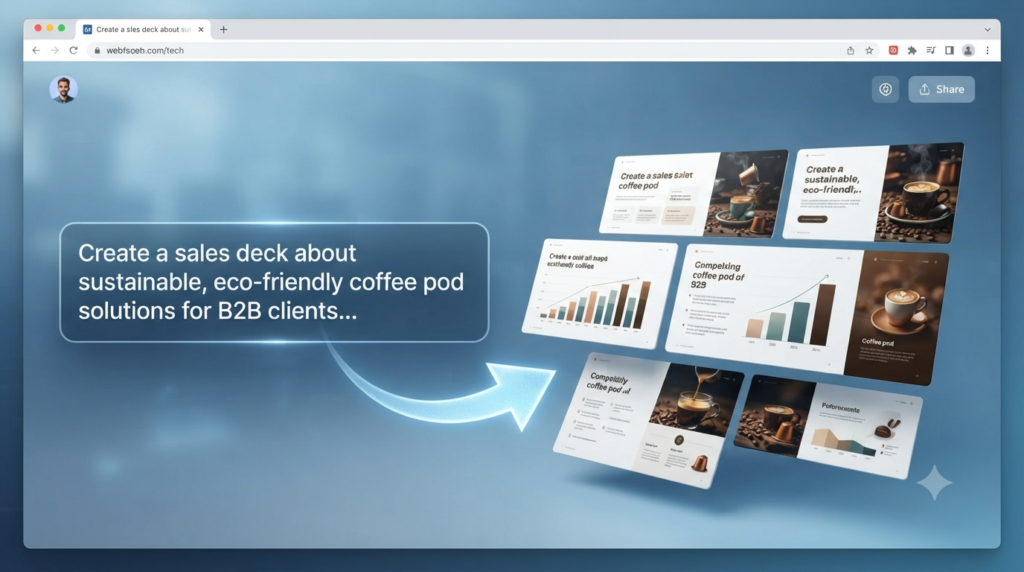
- Write a Clear Prompt: The more specific your prompt, the more useful the first draft is likely to be.
Instead of writing:
“Create a presentation about climate change.”
Try something more specific:
“Create a 10-slide presentation explaining renewable energy trends for a university-level environmental science class. Include key statistics, major renewable energy sources, benefits, challenges, and a short conclusion.”
A detailed prompt gives the AI more information about the topic, audience, length, and structure you want.
- Review the Outline: Many AI presentation tools create an outline before generating the final slides. Take a moment to review it and make sure the order makes sense.
If an important point is missing, add it before generating the complete presentation.
- Refine and Customize: Treat the AI-generated presentation as a first draft. Review the text, replace unsuitable images with AI-generated images when appropriate, adjust colors and fonts, and remove unnecessary information.
Add your own examples, ideas, and branding when appropriate.
- Review and Present: Before presenting, proofread every slide and verify important facts. Check that charts, images, and text are easy to understand.
When you’re satisfied with the result, use the platform’s presentation mode or export the presentation to a supported format such as PowerPoint or PDF.
Tips for Crafting Better AI Presentations
Even the best AI presentation maker needs human guidance. These simple practices can help you get better results:
- Be specific: Tell the AI who your audience is, what you want to explain, and how many slides you need.
- Keep slides simple: Avoid putting too much information on a single slide. Use short points that are easy to read.
- Check important facts: AI can produce incorrect or outdated information, so verify statistics, names, dates, and other important claims.
- Customize the design: Adjust colors, fonts, images, and layouts to match your purpose or brand.
- Add your own ideas: AI can create a starting point, but your examples, experience, and explanations can make the presentation more useful.
- Review the final result: Read every slide before presenting to catch mistakes, repetition, or awkward wording.
Common Mistakes to Avoid
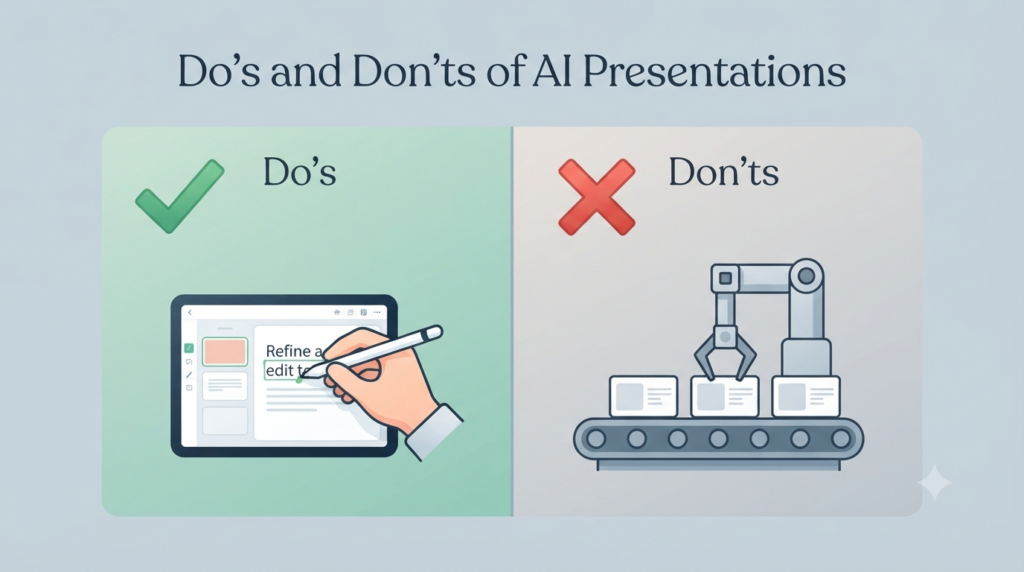
AI can make presentation creation easier, but it doesn’t guarantee a good final result. Avoid these common mistakes:
- Depending completely on AI: Don’t present the first version without reviewing and improving it.
- Using unclear prompts: A vague prompt can produce a generic or poorly structured presentation.
- Adding too much text: Slides should support your explanation, not contain your entire speech.
- Skipping fact-checking: Incorrect statistics or information can reduce your credibility.
- Ignoring branding: For business or professional presentations, use appropriate logos, colors, and fonts.
- Using low-quality visuals: Poor images can make an otherwise good presentation look unprofessional.
- Adding too many animations: Excessive movement can distract your audience from the main message.
- Failing to proofread: Always check spelling, grammar, formatting, and slide order before presenting.
FAQs
1. Does using an AI presentation maker save money?
Answer: Yes, it often reduces costs by eliminating the need to outsource design work, and many platforms offer robust free plans for individual users.
2. Can AI create presentations in different languages?
Answer: Many top-tier AI tools support multilingual output, allowing you to generate and translate slide content into various languages with just a few clicks.
3. Will my AI-generated presentation look unique?
Answer: Most AI tools offer deep customization options, including theme, color palette, and font adjustments, so you can tailor the output to avoid a “generic” look.
4. Are AI-created slides compatible with PowerPoint?
Answer: Many leading AI presentation tools support PowerPoint export, but the exact format and editing capabilities vary by platform and plan. If you need an editable .PPTX file, check the tool’s current export options before creating your presentation.
5. Can AI generate charts from my existing data?
Answer: Some AI presentation tools can create charts and visualizations from data, while others may offer more limited data features. If you plan to use Excel or CSV data, check whether your chosen platform supports the file type and chart features you need.
6. Is it better to use AI or a professional designer?
Answer: AI is ideal for speed, routine tasks, and tight budgets, while professional designers are still better for high-stakes branding and complex, bespoke creative projects.
7. Do I need an internet connection to use AI presentation tools?
Answer: Because these tools rely on cloud-based generative AI models, an active internet connection is typically required to create and edit your slides.
8. Can AI add speaker notes to my slides?
Answer: Many advanced AI tools automatically generate detailed speaker notes and talking points based on the slide content to help you prepare for your delivery.
9. Is my data safe when using AI presentation tools?
Answer: Data privacy policies vary between AI presentation tools. Before uploading confidential or sensitive information, review the platform’s privacy policy and understand how your data is stored, processed, and used.
10. How do I improve the “flow” of an AI-generated deck?
Answer: To improve flow, treat the AI’s first draft as a “skeleton.” Rearrange the slide order, delete redundant slides, and add your own transition sentences to create a smoother narrative arc.
11. Can I use AI to make presentations for free?
Answer: Yes. Many AI presentation makers offer free plans or trials, although they may limit features, AI generations, exports, or other capabilities. A free plan can be a good way for beginners to test a tool before deciding whether they need a paid subscription.
12. Does AI replace the need for a presenter?
Answer: Absolutely not. The AI builds the slides, but your delivery, energy, and ability to connect with your audience are what make a presentation truly successful.
Conclusion
AI presentation makers can save time by handling many of the repetitive tasks involved in creating slides. They can help you build an outline, generate content, organize layouts, and prepare a presentation faster than starting everything from scratch.
However, AI should be treated as a starting point rather than a replacement for your own judgment. Review the information, customize the design, add your own ideas, and make sure the final presentation fits your audience.
Whether you’re preparing a school assignment, business presentation, or client proposal, the right AI presentation maker can help you spend less time formatting slides and more time communicating your ideas.
Call-to-Action
Ready to create your next presentation with AI?
Start with a free plan or trial, choose a tool that fits your workflow, and create a small presentation to see how well it works for you. Remember, the best results come from combining AI’s speed with your own ideas and judgment.
Which AI presentation maker would you like to try first?