

Ever begin a chat with ChatGPT and end up having to introduce yourself once again? No matter what you write—it’s the same style and the same preferences—every single time. After the round, it becomes fatiguing.
This is why ChatGPT Memory was created. Instead of treating every conversation as completely separate, ChatGPT Memory can remember relevant information from one conversation to the next. This translates into less time typing the same old information and more time getting work done.
Here’s everything beginners need to know about ChatGPT Memory! We’ll explain what it is, how it works, what it remembers and what it doesn’t and how to check, change or turn it off whenever you want. No complicated terms. Clear and easy to follow instructions.
Before we get started, one note! OpenAI makes updates to ChatGPT. Menu names, options and settings may differ based on your plan, location and/or device. If there are any discrepancies, that’s fine. The main idea, behind each step stays the same.
What Is ChatGPT Memory?
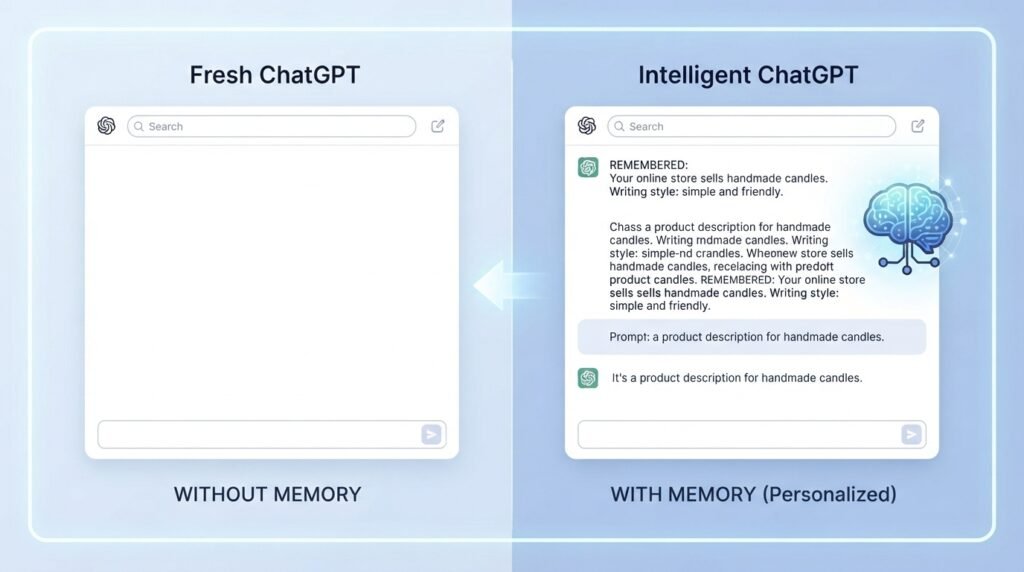
ChatGPT Memory is a feature that enables ChatGPT to recall information from one conversation to the next regarding you. If this is not enabled, then the new chat will start with no memory of chats. This allows ChatGPT to remember things such as your name, how you like to write your interests or your typical work.
Consider shopping at a local business. The shopkeeper doesn’t know anything about you when you go to the shop. Eventually, after a few visits they begin to recall your regular purchases or purchasing habits, whether it’s how you like your coffee or what you inquired about the last time you went. You don’t have to repeat yourself. The experience is more comfortable and more personal.
ChatGPT Memory works the way. The more specific and useful its responses are the more palatable the context is.
If you tell ChatGPT once that you have an online store that sells handmade candle, and you want the writing to be simple and friendly, ChatGPT will remember. For instance, if you reveal your online store selling handmade candles and your preference for writing, ChatGPT will keep in mind. A week later you ask for some assistance in writing a description of the product. It could already have a memory of your store and your writing style, if you’ve enabled ChatGPT Memory. It can begin writing in a manner that suits your needs and requirements without your having to explain all the things.
Please note: ChatGPT Memory is not reading your mind or knowing your life story. It only stores relevant and valuable information. You always have control, over what detailers saved. We’ll discuss those controls shortly.
How Does ChatGPT Memory Work?
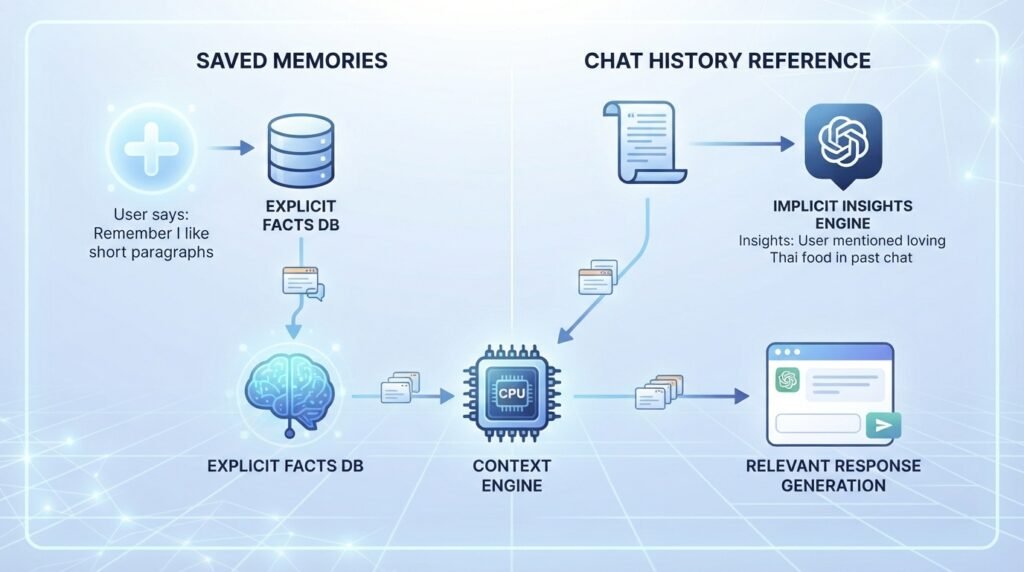
Let’s keep this part simple. ChatGPT Memory works in two ways and understanding the difference makes everything else easier.
1. Saved memories. These are facts that ChatGPT keeps for future chats. You can create them by asking for example “Remember that I prefer short paragraphs ” or ChatGPT may save something useful it notices during a conversation. Saved memories stay in place until you remove them. Depending on your account, you may see saved memories as individual items, a memory summary, or other memory controls.
2. Reference to chats. This is a more automatic layer. Here ChatGPT can use insights from your conversations to make new answers feel more relevant. If you once mentioned that you love Thai food it might factor that in when you ask for dinner ideas later. Unlike saved memories this layer doesn’t usually appear as a list you can read line by line.
OpenAI has also been simplifying how this looks inside the app. Some accounts now show a Memory control with an editable summary while others still show the older pair of switches for saved memories and chat history. Both layouts exist at the time so what you see depends on your account.
Behind the scenes ChatGPT decides which pieces of remembered information are actually useful for your question and uses only those. It doesn’t dump everything it knows into every reply. Memory can also change over time as your interests and work change so it’s not a frozen record.
A helpful way to picture it: saved memories are like notes you deliberately put on a board while chat history reference is more, like a general impression built from past conversations.
What Can ChatGPT Remember?
ChatGPT Memory aims to remember information to make future conversations more useful and more personal. It can recall events such as:
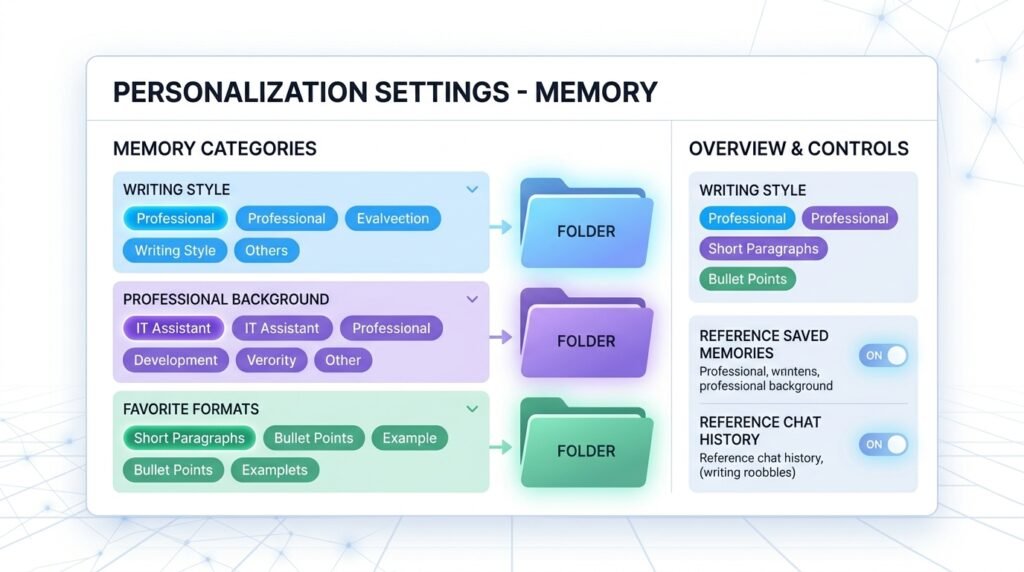
- Examples of personal preferences include your writing style, formatting and your language of choice.
- Details of your background such as what you do for a living or what type of business you run or work in
- Some goals and projects you’re involved in, such as a blog you’re building or a class you are taking
- Books (such as your favorite authors), magazines, newspapers or comics that you enjoy
- Repeated words or phrases, such as: “keep it short” or “explain this like I’m just starting out”
ChatGPT does not remember every message or every detail from your conversations. Memory is selective and focuses on information that may be useful for future conversations. So if you’re wondering whether it will recall a chat from three months ago exactly as it happened, the answer is no. It will not play it back verbatim..
One thing to keep in mind: However, be careful about what you share. While ChatGPT does remember some information, it’s best not to add anything sensitive. This includes passwords, credit card numbers, bank information, private medical records or any confidential work files. If you wouldn’t write something down on a note and leave it where others can see it don’t type it into a chat. Ensure safety of data.
How to Use Memory in ChatGPT
It’s easier to use Memory in ChatGPT than people think. You don’t need any skills. The following is how to get started.
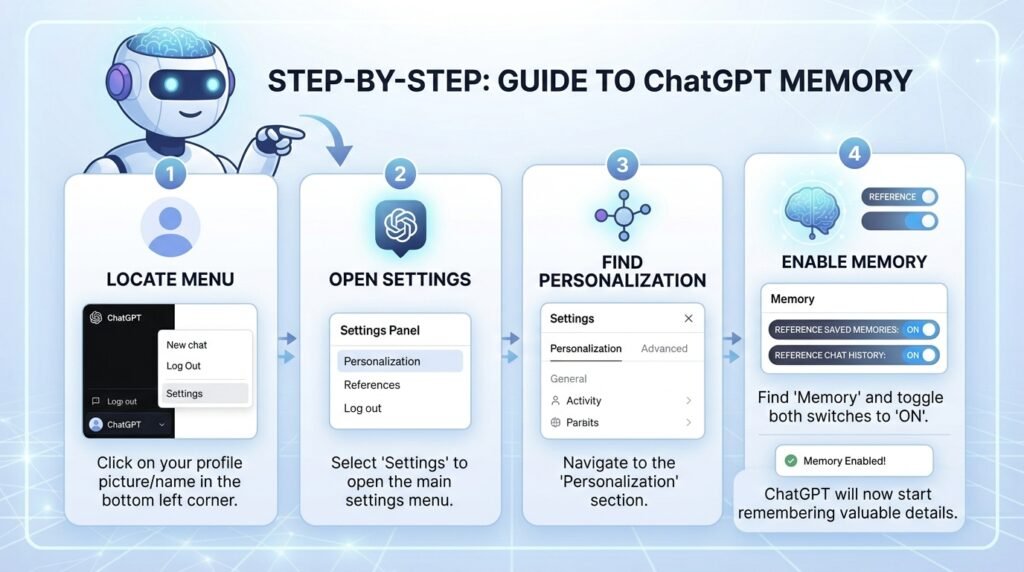
Step 1: Check whether Memory is available. Open ChatGPT, go to Settings, and select Personalization. Look for the Memory section. Depending on your account, you may see options such as Memory, Reference saved memories, or Reference chat history. If Memory is available, you can use the available controls to turn it on or off.
If you do not see the option, it means that all Memory features may vary by Plan, Region, Platform and Workspace settings. It is possible that this is not available in your account yet.
Step 2: Give ChatGPT instructions to remember. The easiest option is to chitchat it. For example:
Be sure to remember that I write for people who don’t know English, so please use English!
- Remember that my store sells handmade jewellery.
- Remember I like short bullet points as answers.
- ChatGPT will typically say that it has stored the detail.
Step 3: Allow Memory learning to take place naturally. If Chat history reference is enabled, ChatGPT can learn from the context of your regular chats. You don’t have to specify each preference again.
Step 4: Don’t take anything for granted! Just ask the question “What does Memory remember about me?” if you don’t know. It isn’t that memory doesn’t remember. This is a habit particularly at the beginning.
A hint: if it is important, say it clearly and directly, and not rely on Memory picking it up. Be direct, do not give hints.
ChatGPT Memory vs Chat History: What’s the Difference?
This is where a lot of people get mixed up so let’s make it simple.
Chat history is the list of all your conversations that you see in the sidebar. It’s like a notebook you can go back to. You can read what you talked about before pick up a chat where you left off or remove a chat entirely.
ChatGPT Memory is different. It’s the information that ChatGPT remembers from chats and uses to make new conversations more personal. It doesn’t show up in your chat list. Instead it lives in your settings under Personalization.
Here’s a quick way to keep the difference straight:
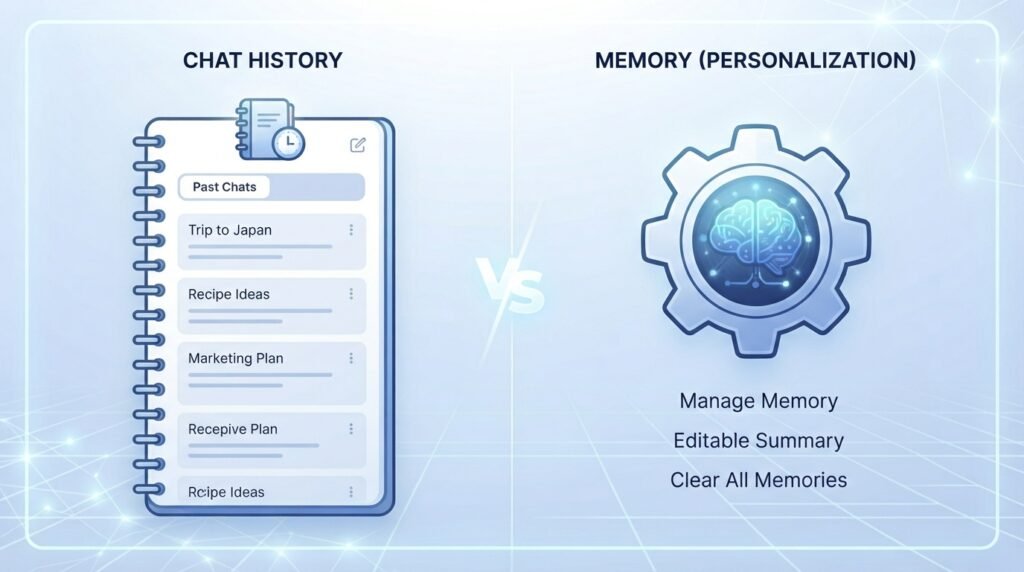
| Chat History | ChatGPT Memory | |
| What it is | A record of your past conversations | Useful details carried into future chats |
| Where you see it | The sidebar list of chats | Settings, under Personalization |
| Purpose | Reread or continue old chats | Personalize new chats |
| Deleting it | Removes the chat itself | Managed separately |
The last point is really important. Saved memories are stored apart from your chat history. If you delete a chat that doesn’t mean the memory from it disappears. For example if you told ChatGPT your book in a chat and then deleted that chat the memory might still be there. To fully remove it you have to go into your settings and delete the memory itself.
Also be careful, with the term “chat history reference.” This is part of the memory system, not your chat list. The names can be confusing but once you understand that chat history and memory are things it all makes more sense.
How to Check What ChatGPT Remembers
Fortunately, you don’t need to make an educated guess. There are two methods to investigate what ChatGPT Memory is retaining.
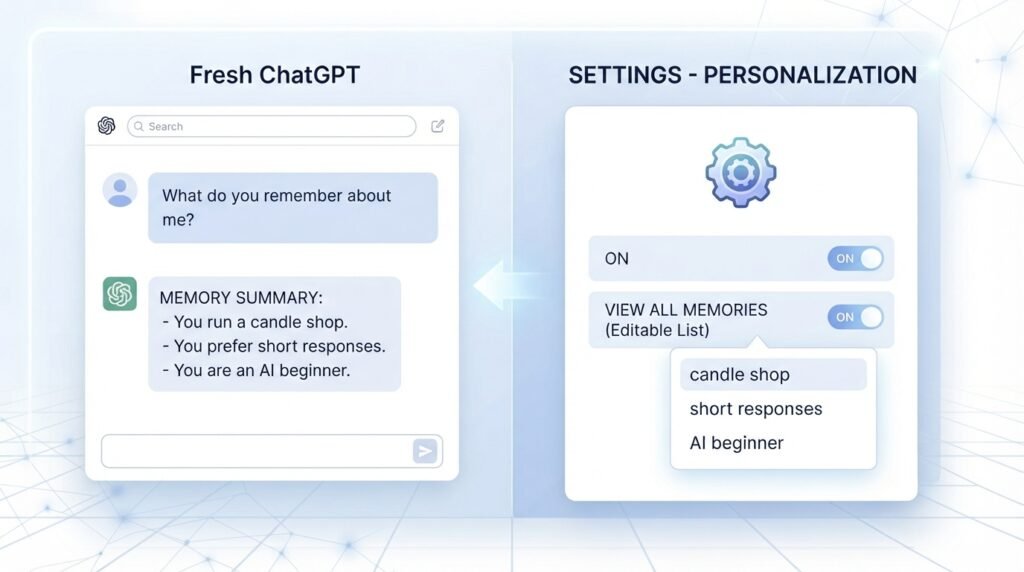
Method 1: Simply ask ChatGPT directly. Start a conversation and ask something such as, “What do you remember about me?” ChatGPT can provide information about the context it currently remembers. This is a quick and easy way to check.
Method 2: Check the Settings. Go to Settings, then select Personalization and Memory. You may see a list of saved memories, a memory summary or you may have a Manage option that displays the details. This lets you review the memory information and controls available on your account.
The things that you should know:
- It is common to be able to see saved memories as individual ‘readable’ items.
- Information collected from chats is less obvious. Generally it is not possible to read it line, by line. Have the ability to start or stop it only.
- If you are a new account you have recently turned on Memory or if it is a new account until there is some history, it is unlikely that you will see much at first. The summary expands as you continue to use ChatGPT.
Every now and then, review your memories and remove outdated information you no longer want ChatGPT to use. Think of it like sorting through a drawer and removing things you no longer need.
How to Change or Remove a Memory
Made a mistake. Has something in your life changed? No problem. It is possible to fix or delete memories
To change the memory: Simply instruct ChatGPT with the new information. For example “Update my memory: I now write about AI tools of travel.” You can modify content that ChatGPT saved. The memory list can also be accessed from Settings and allow editing or replacement of an item if available.
To delete a memory: Go to Settings, and then select Personalization, and then select Manage memories (or the like in your account). Find the item you wish to get rid of and remove it. You can also ask ChatGPT to forget a specific detail, such as, ‘Forget that I run a candle shop.’ Depending on your Memory experience, you may also be able to remove or edit the information from Memory settings.
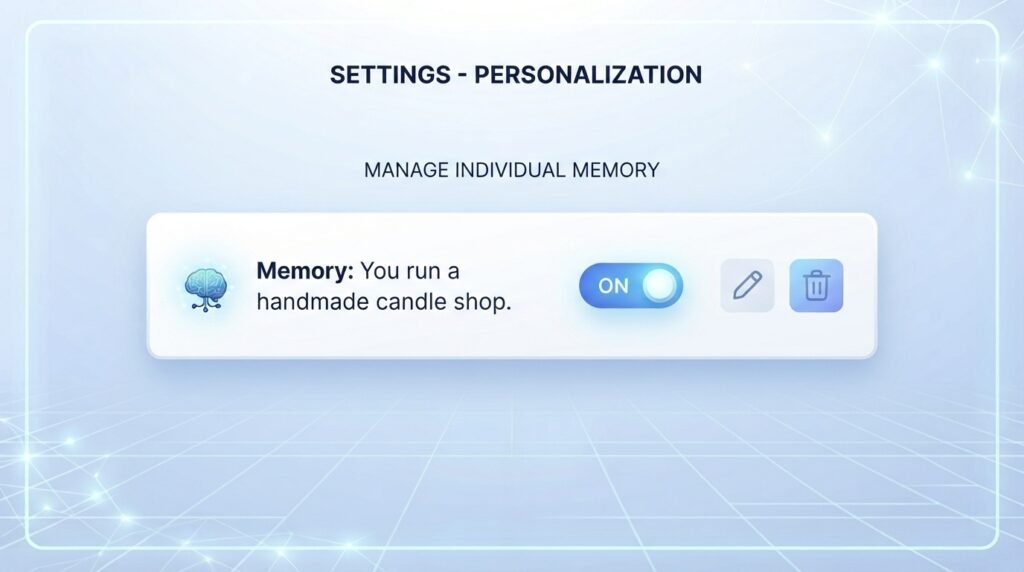
If you want to remove information completely, deleting a saved memory may not be enough. Depending on where the information came from, you may also need to remove it from the original source.
This can include:
- The saved memory or memory summary
- The chat where you originally shared the information
- Relevant files stored in Library
- Connected apps that contain the same information
OpenAI says that deletion and Memory updates can take some time to propagate, and logs of deleted saved memories may be retained for up to 30 days for safety and debugging purposes.
If you turn Memory back on later, ChatGPT may create new remembered information from chats that remain in your history. You can delete the corresponding chats as well if you wish to remove that information.
How to Turn ChatGPT Memory Off
Maybe you want to start again every time or maybe you don’t want anything stored at all. It takes little time to turn off ChatGPT Memory.
Here’s how:
1. Open ChatGPT and go to Settings.
2. Select Personalization.
3. Find the Memory section.
4. Switch off Memory. Depending on your account, you will see Reference saved memories and Reference chat history – turn these off.
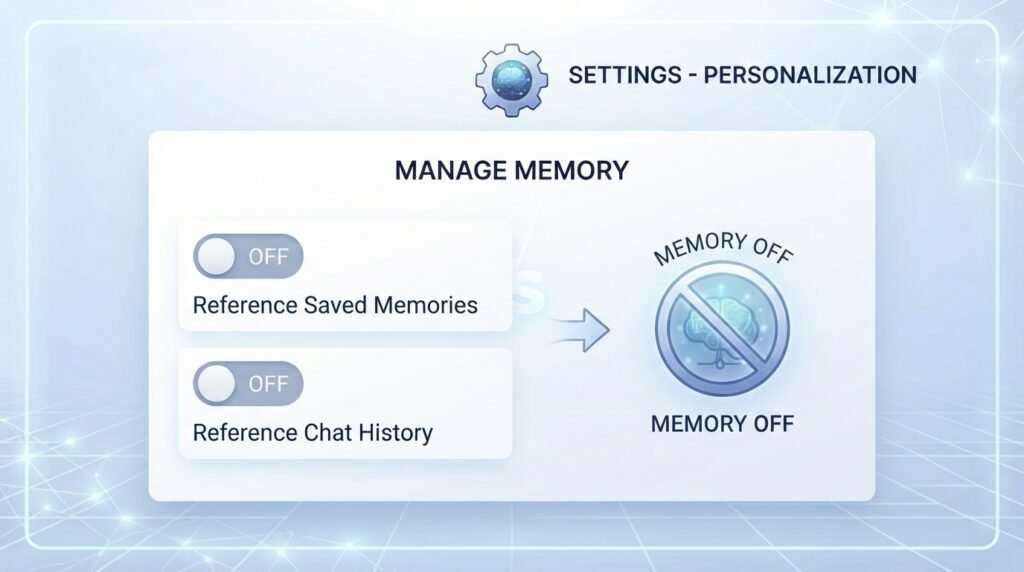
Please note:
- Turning off Reference saved memories also turns off Reference chat history.
- Turning off Memory does not automatically delete previously saved memories. If you want specific information removed, delete the relevant memory and, when appropriate, the original chat or other source where the information appears.
- You can turn Memory back on later if you choose.
What Is Temporary Chat. How Is It Different?
Sometimes you want the help of ChatGPT without any of your conversations being remembered. That’s what Temporary Chat is for.
Temporary Chat is designed for conversations that you don’t want saved to your normal chat history or used to create or update Memory. Before starting one, you can choose whether it should use existing personalization, including Memory.
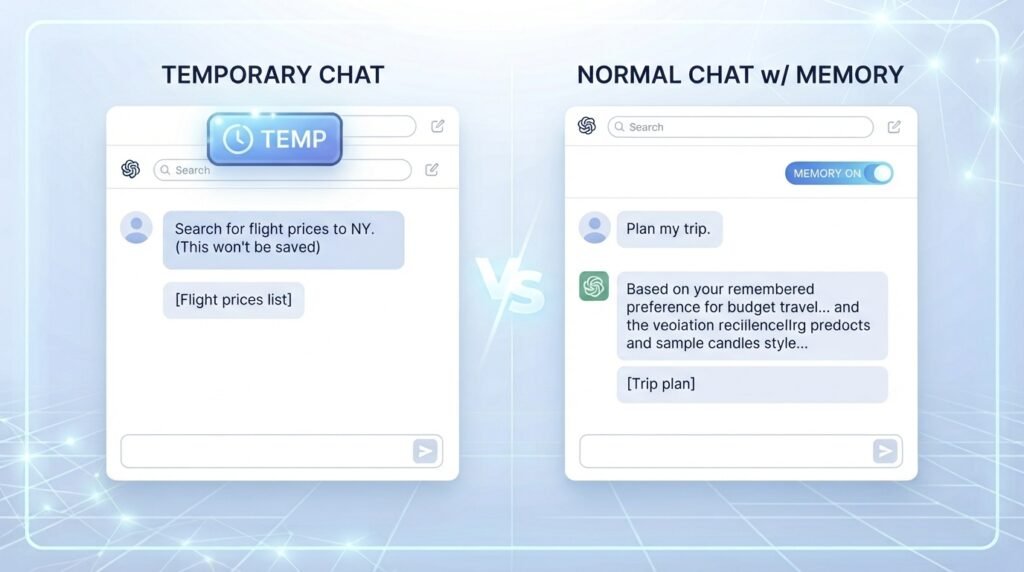
Here’s how it compares to a chat:
- Normal chat with Memory on: ChatGPT can use relevant memories and other available context to personalize responses.
- Temporary Chat: You can choose Personalized or Unpersonalized before starting. A Temporary Chat does not create or update memories while it remains temporary.
When can you use Temporary Chat?
- When you’re asking about something sensitive that you don’t want tied to your account
- When you want an answer that isn’t shaped by your habits or preferences
- When you’re experimenting with a prompt just once and don’t want it saved
- When you’re helping someone else and don’t want their info mixed into your memory
To start a Temporary Chat look for the option near the top of the new chat window either on the web or in the app. It might be, in a different spot depending on your device.
The key point is this: You don’t have to turn off your Memory feature all the time if you only need privacy sometimes. Just open a Temporary Chat when you need it. It gives you a convenient option when you want a temporary conversation without creating or updating Memory.
Tips for Using ChatGPT Memory Effectively
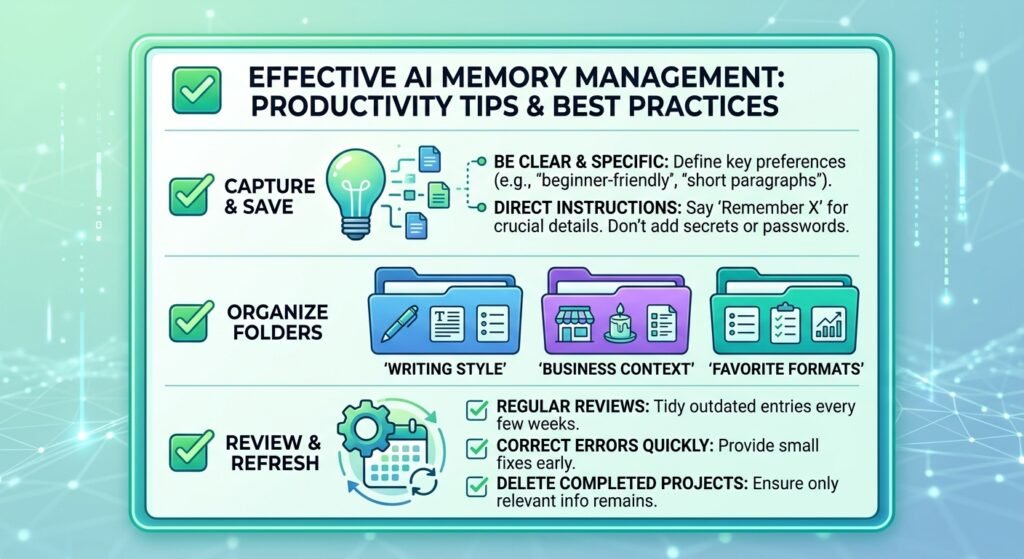
Now that you know the controls these practical habits help you get the most out of ChatGPT Memory without any headaches.
1. Be clear and specific. “Remember that I write beginner‑friendly tech blog posts in English” is far more useful than “I write stuff.” The clearer the instruction, the better the result.
2. Save preferences, not secrets. ChatGPT Memory is great for tone, format and goals. It is not the place for passwords, financial details or private documents.
3. Review ChatGPT Memory regularly. Every few weeks, open the ChatGPT Memory settings and clear any old or wrong entries. Outdated ChatGPT Memory can quietly steer answers in the direction.
4. Correct mistakes right away. If ChatGPT Memory remembers something incorrectly tell ChatGPT Memory immediately: “That is not right please update it.” Small fixes early prevent confusion later.
5. Use Temporary Chat when needed. For one‑off or sensitive questions a Temporary Chat keeps things clean.
6. Separate different projects. If you juggle a blog, a store and personal tasks be specific about which one you’re discussing. Some accounts also offer project‑based options that keep context contained to one project, which can help keep things tidy.
7. Do not rely on ChatGPT Memory for everything. ChatGPT Memory is helpful. It is not perfect. For important tasks, restate the key details in your prompt. It only takes a few seconds. Avoids surprises.
8. Delete. ChatGPT Memory together when needed. If you truly want something gone remember that removing the chat may not be enough.
FAQs
Q1: Is ChatGPT Memory free to use?
Answer: Availability can depend on your plan, region, and platform. Many users can access some form of Memory, but the exact features may differ. Check your Settings to see what’s available on your account.
Q2: Does ChatGPT remember everything I say?
Answer: No. ChatGPT Memory is selective. It tries to keep details that seem useful for future conversations, not every word of every chat.
Q3: How do I see what ChatGPT remembers about me?
Answer: You can ask directly in a chat, or open Settings, then Personalization, then Memory to review saved items or your memory summary.
Q4: If I delete a chat, does the memory disappear too?
Answer: Not necessarily. Saved memories are stored separately from chat history, so you may need to delete the memory itself as well as the original chat.
Q5: Can I make ChatGPT forget one specific thing?
Answer: Yes. Ask it to forget that detail in a chat, or delete that item from your memory settings.
Q6: What’s the difference between Memory and Temporary Chat?
Answer: ChatGPT Memory can carry relevant information across conversations. Temporary Chat does not create or update memories, but you can choose whether a Temporary Chat uses existing personalization, including Memory.
Q7: Is it safe to share personal information with ChatGPT?
Answer: It’s best to be careful. Avoid sharing passwords, bank details, private health information, or confidential work data. If you don’t want something remembered, use Temporary Chat or turn Memory off.
Q8: Why can’t I find the Memory option in my settings?
Answer: Memory controls can vary by plan, region, device, and workspace settings, and some features roll out gradually. If you don’t see it yet, it may simply not be available on your account.
Q9: Will turning Memory off delete what ChatGPT already saved?
Answer: Not automatically. Turning Memory off does not by itself delete previously saved memories. If you want information removed, delete the relevant saved memory and, when appropriate, the original chat or other source where it appears.
Q10: Can ChatGPT Memory make its answers better?
Answer: It can. When ChatGPT understands your preferences and goals, answers often feel more relevant and need fewer follow-up corrections.
Final Thoughts
ChatGPT Memory is one of those features that can make everyday use feel smoother. Instead of repeating the same preferences and background information again and again, ChatGPT can remember relevant details and use them in future conversations.
The important thing to remember is that you remain in control. You can review available Memory information, correct or remove remembered details, turn Memory off, or use Temporary Chat when you want a temporary conversation without creating or updating Memory.
To make the most of ChatGPT Memory, be clear about what you want it to remember, avoid sharing sensitive information, review your Memory settings from time to time, and remove information from both Memory and its original source when you no longer want it retained.
Because OpenAI continues to update ChatGPT, menu names and available Memory controls may change. Check your Settings occasionally to see which Memory options are currently available on your account.
Ready to Make ChatGPT Work Smarter for You?
Now it’s your turn. Open ChatGPT, go to Settings. Take a moment to explore the Memory options today. Try sharing one preference—like your favorite coffee type or a preferred writing tone—and notice how it shows up in your next conversation. Have you already tried ChatGPT Memory? We’d love to hear what worked well or where you ran into confusion. Share your thoughts or questions in the comments. If this guide helped you pass it along to someone just starting out with AI tools. For simple beginner-friendly guides, like this one keep exploring Knoexa.